 Gampi
Gampi
Kein FPS-VerlustNo FPS loss
Die Grafikkarte wendet die Einstellung bei der Ausgabe an. Kein Overlay, keine Latenz.Your GPU applies the setting at display output. No overlay, no latency.
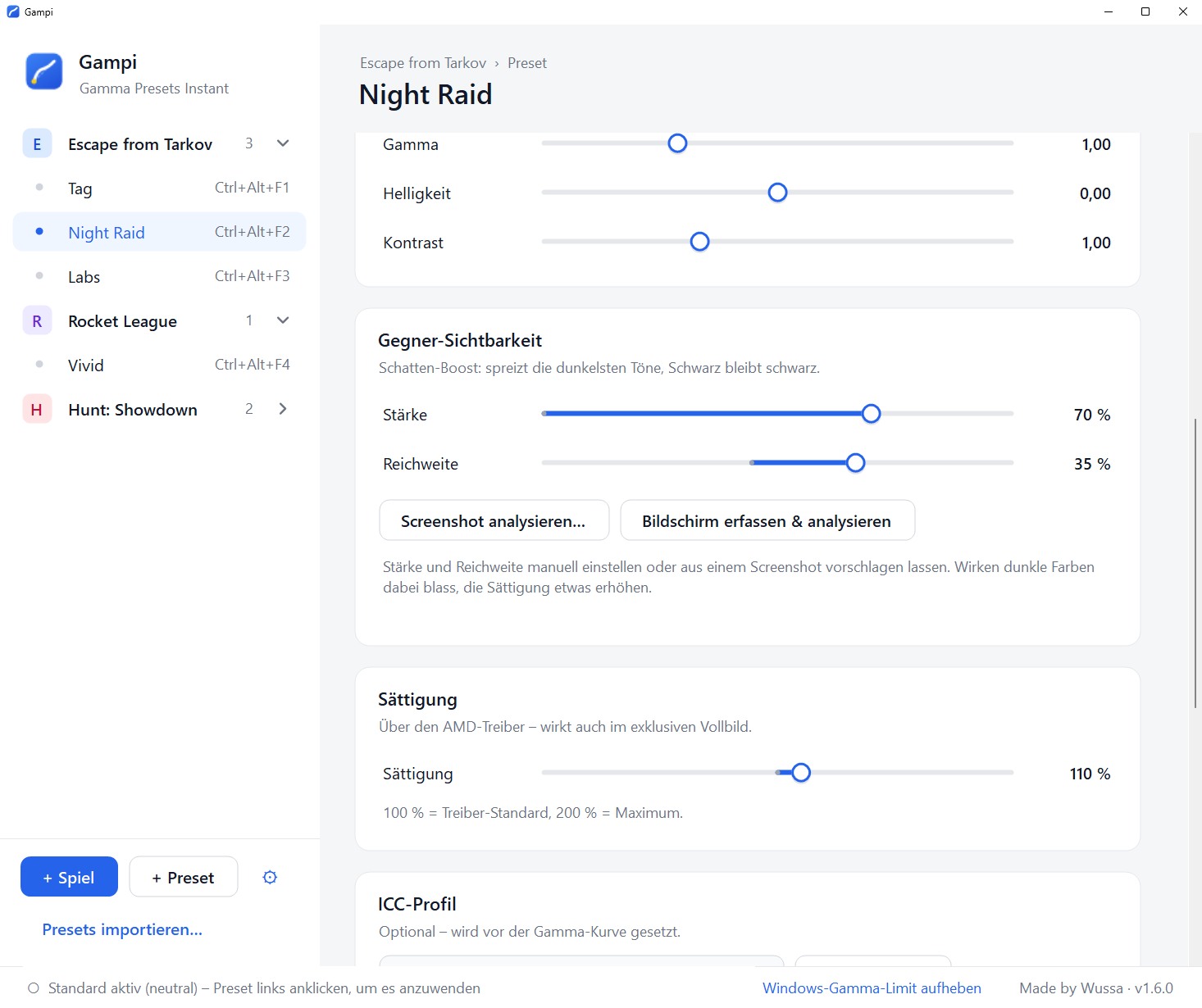
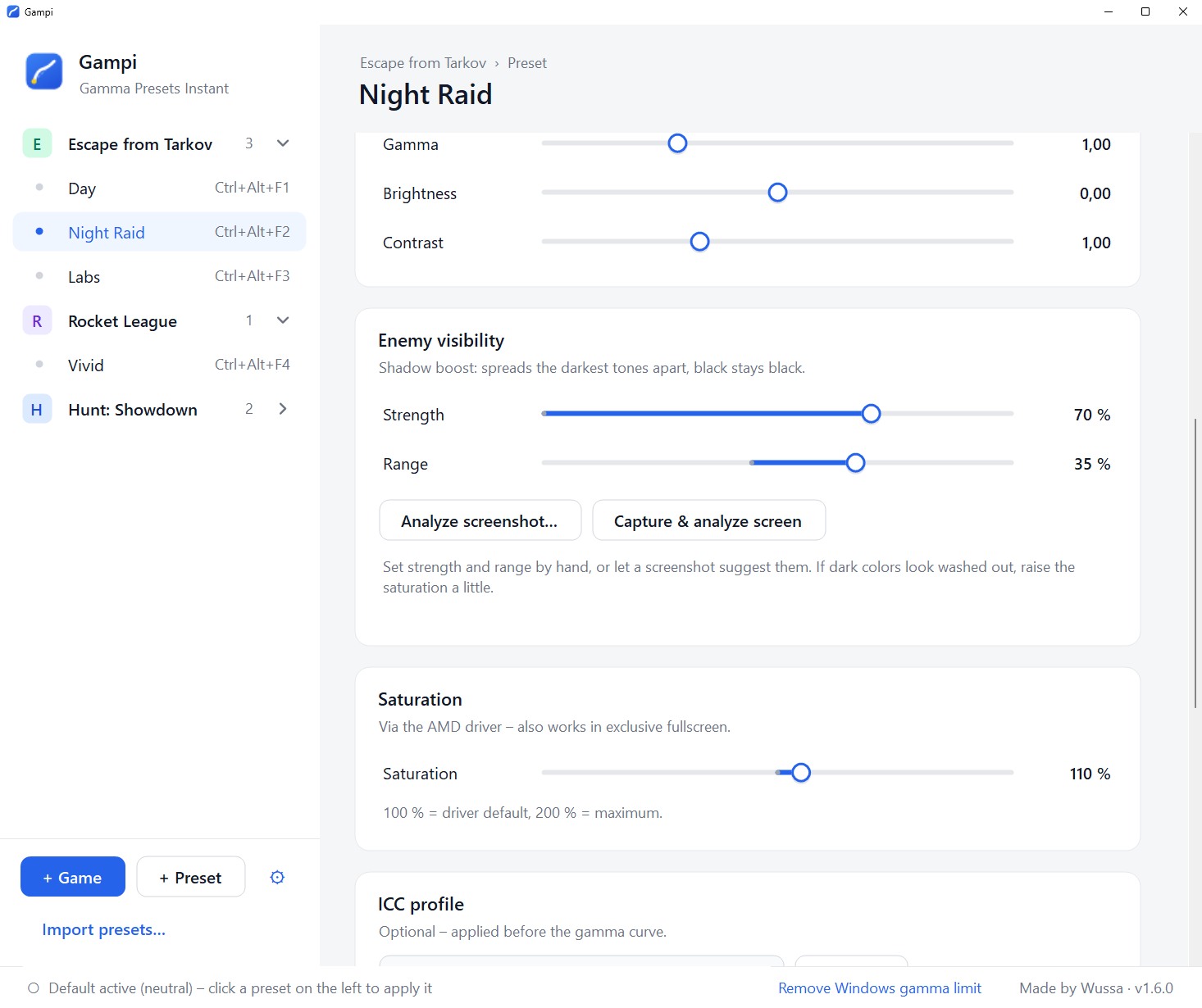
Gampi hellt Schatten gezielt auf und gibt blassen Spielen Farbe – mit einem eigenen Preset pro Spiel, das sich beim Start automatisch einschaltet. Gampi brightens shadows precisely and gives pale games their color back – with a preset for each game that switches on automatically when it starts.
Nicht nur für Spiele: Gampi wirkt auf alles auf deinem Monitor – Filme, Streams, jedes Programm. Not just for games: Gampi works on everything on your monitor – movies, streams, any program.
Viele Spiele sind zu dunkel oder zu blass – und die üblichen Regler machen es oft schlimmer. Das sind die Probleme, und so löst Gampi sie. Many games are too dark or too pale – and the usual sliders often make it worse. Here are the problems, and how Gampi fixes them.
Drehst du die Helligkeit hoch, wird das ganze Bild heller und wirkt blass und milchig – und der Gegner hebt sich trotzdem kaum ab.Turn up the brightness and the whole picture gets lighter and looks pale and washed out – and the enemy still barely stands out.
Gampi hellt nur die dunkelsten Töne auf. Details im Schatten werden sichtbar, Schwarz und helle Bereiche bleiben, wie sie sind.Gampi brightens only the darkest tones. Details in the shadows become visible, while black and bright areas stay as they are.
Viele Spiele haben keinen Regler für Farbe oder Kontrast. Im Treiber steckt die Sättigung in Untermenüs – und gilt dann für alles.Many games have no slider for color or contrast. In the driver, saturation hides in submenus – and then applies to everything.
Sättigung, Kontrast und Gamma stellst du in Gampi ein und speicherst sie zusammen als Preset – nur für dieses Spiel.You set saturation, contrast and gamma in Gampi and save them together as a preset – just for this game.
Treiber- und Monitor-Einstellungen gelten für den ganzen PC. Änderst du sie für ein Spiel, sind Desktop und andere Spiele mit verstellt.Driver and monitor settings apply to the whole PC. Change them for one game and your desktop and other games change too.
Gampi erkennt den Spielstart, schaltet dein Preset ein und danach wieder aus. Mitten im Spiel wechselst du per Hotkey.Gampi detects the game starting, switches your preset on and off again afterwards. Mid-game, you switch by hotkey.
AMD Software bietet Helligkeit und Kontrast, aber kein Gamma – genau das, was dunkle Szenen am besten aufhellt.AMD Software offers brightness and contrast, but no gamma – exactly what brightens dark scenes best.
Gampi stellt Gamma direkt über Windows ein – mit AMD, NVIDIA und Intel.Gampi sets gamma directly through Windows – on AMD, NVIDIA and Intel.
| Helligkeitseinstellung im SpielIn-game brightness setting | Monitor-MenüMonitor menu | AMD- / NVIDIA-TreiberAMD / NVIDIA driver | ReShade & FilterReShade & filters | Gampi | |
|---|---|---|---|---|---|
| Hellt nur die Schatten aufBrightens only the shadows | ✗ | teilspartly | ✗ | ✓ | ✓ |
| Eigene Einstellung pro Spiel, automatischOwn setting per game, automatically | ✓ | ✗ | ✗ | ✓ | ✓ |
| Desktop bleibt normalDesktop stays normal | ✓ | ✗ | ✗ | ✓ | ✓ |
| Wechsel per Hotkey mitten im SpielSwitch by hotkey mid-game | ✗ | ✗ | ✗ | teilspartly | ✓ |
| Kein FPS-Verlust, keine LatenzNo FPS loss, no latency | ✓ | ✓ | ✓ | ✗ | ✓ |
| Gamma auch mit AMD-GrafikkarteGamma on AMD graphics cards too | teilspartly | teilspartly | ✗ | ✓ | ✓ |
| Sättigung, Kontrast und ICC-Profil in einem PresetSaturation, contrast and ICC profile in one preset | ✗ | ✗ | ✗ | ✗ | ✓ |
„teils“ = je nach Spiel oder Monitor. ReShade & Filter: z. B. ReShade oder NVIDIA-Filter. “partly” = depends on game or monitor. ReShade & filters: e.g. ReShade or NVIDIA filters.
Einmal einstellen, danach läuft alles von allein. Änderungen dauern Sekunden. Set it up once and it runs on its own. Changes take seconds.
Die Grafikkarte wendet die Einstellung bei der Ausgabe an. Kein Overlay, keine Latenz.Your GPU applies the setting at display output. No overlay, no latency.
Ein eigenes Farbprofil pro Preset für den letzten Feinschliff.Your own color profile per preset for the final polish.
Screenshots zeigen den Effekt nicht – Vorher/Nachher-Bilder und eine LUT für OBS schon.Screenshots don't show the effect – before/after images and a LUT for OBS do.
Setzen Alt+Tab oder der Monitor das Bild zurück, stellt Gampi dein Preset sofort wieder her.If Alt+Tab or the monitor resets the picture, Gampi restores your preset right away.
Ein Ordner pro Spiel, darin Presets für Tag, Nacht oder einzelne Karten.One folder per game, with presets for day, night or single maps.
Als Datei weitergeben, per Drag & Drop importieren.Pass them on as a file, import by drag & drop.
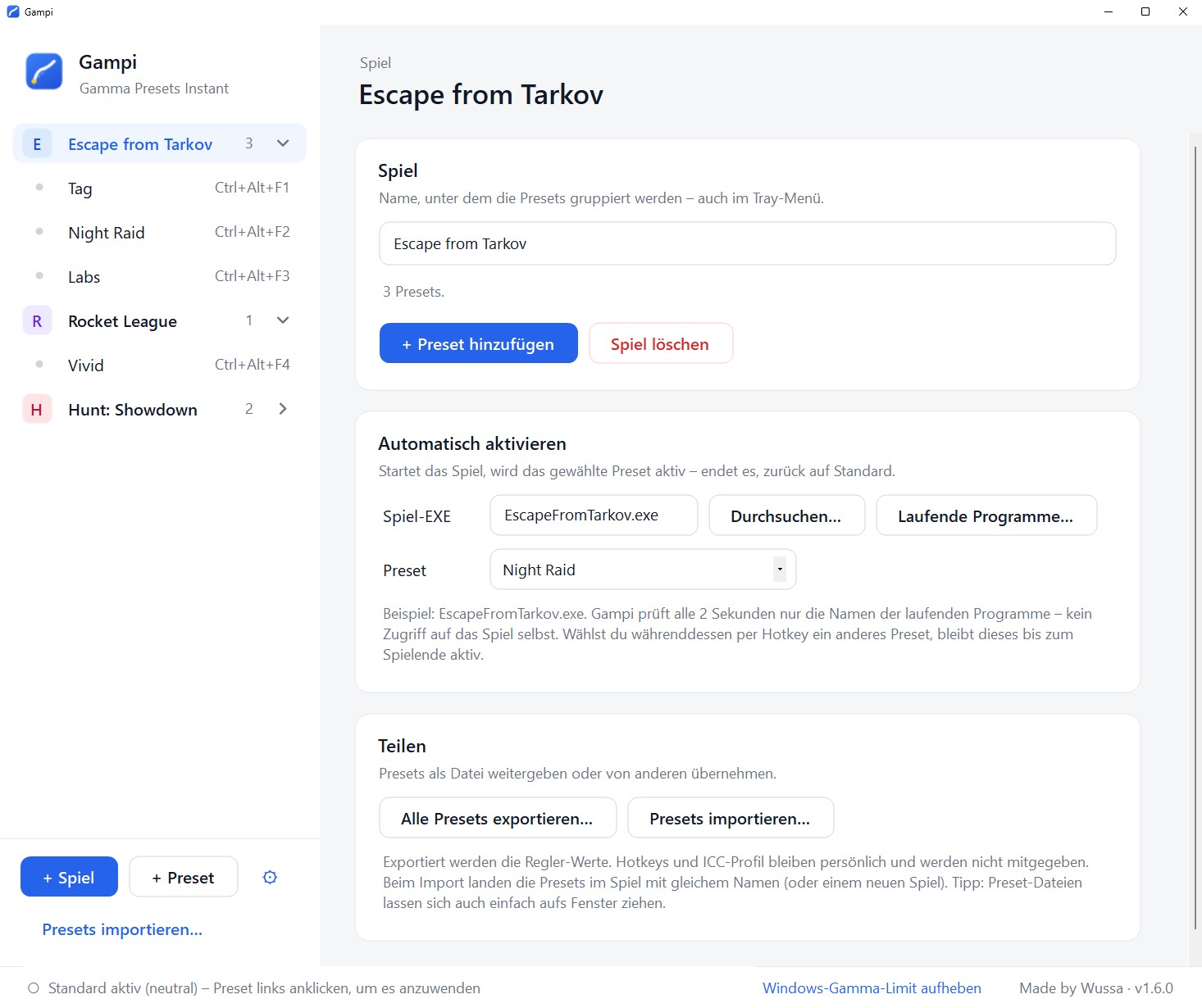
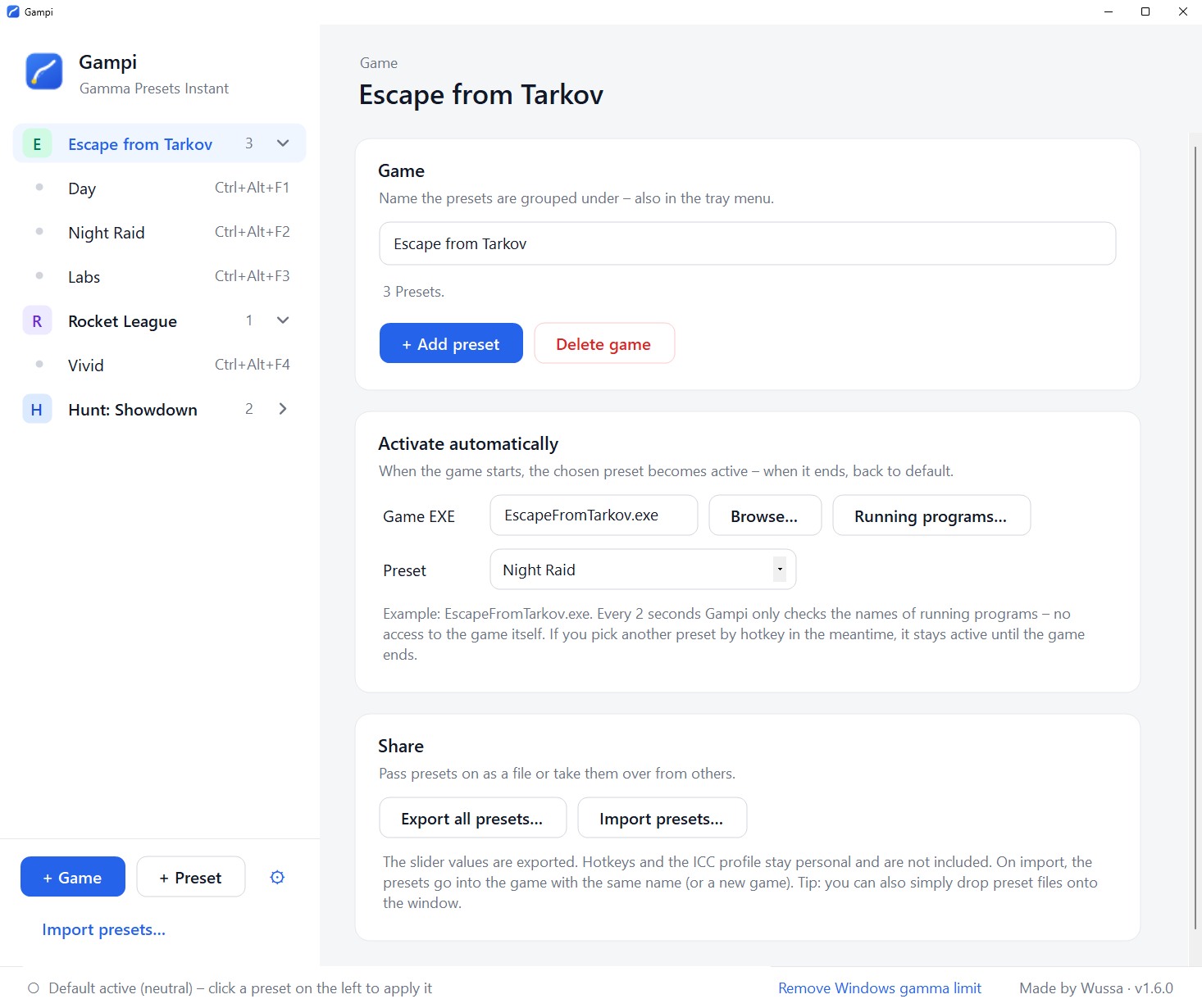
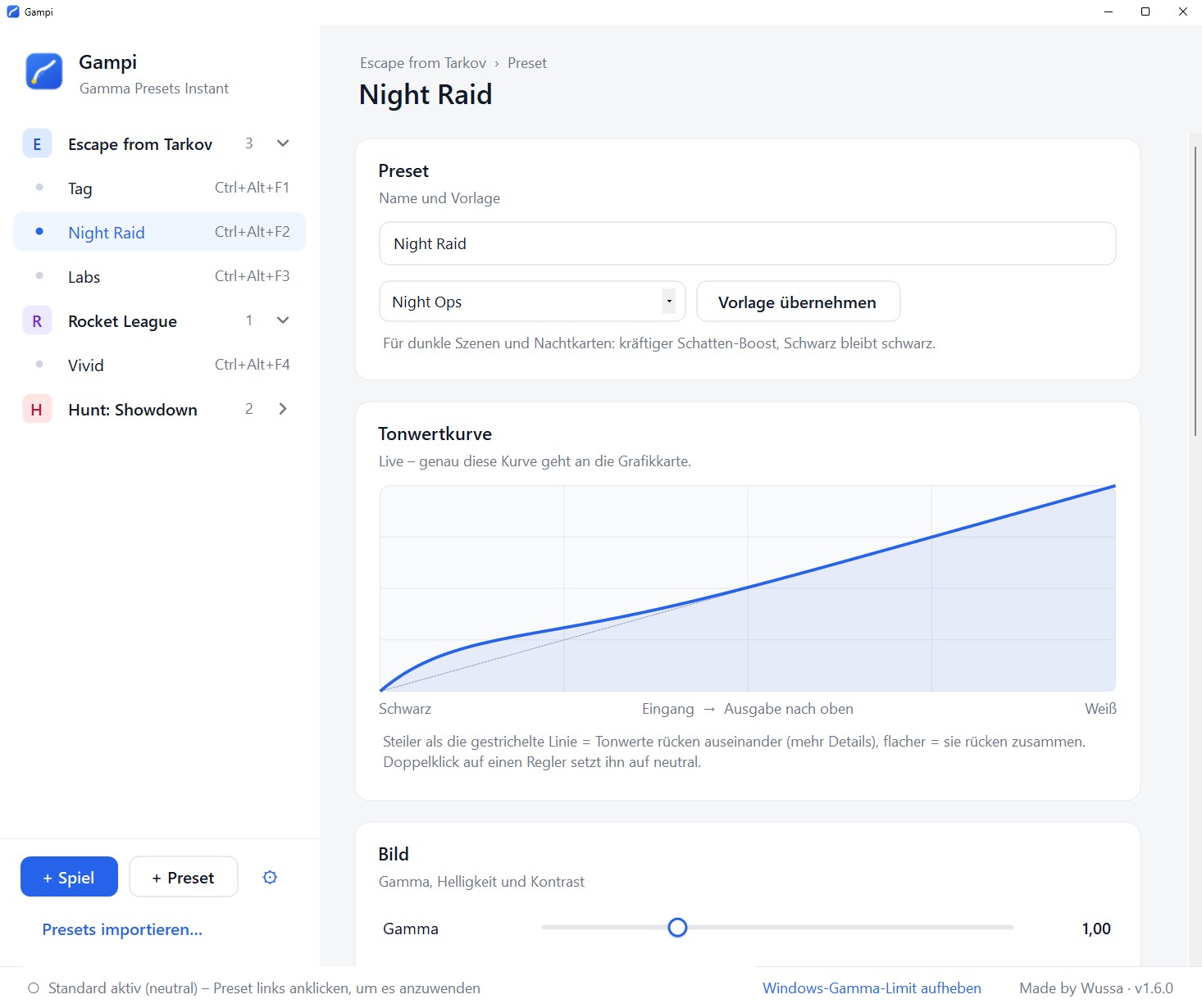
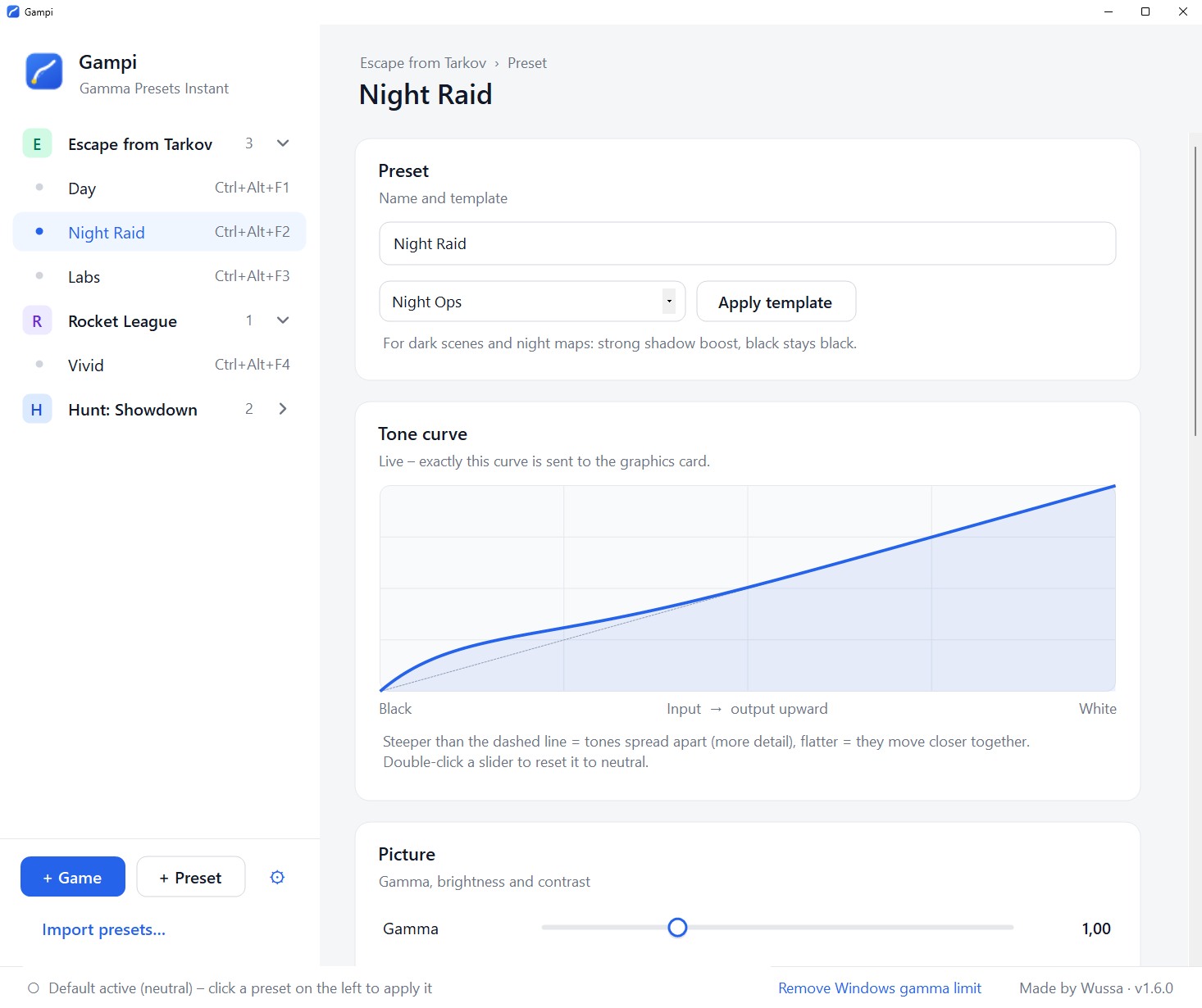
In drei Schritten eingerichtet – danach schaltet Gampi von selbst um. Set up in three steps – after that, Gampi switches by itself.
Dann einfach spielen – den Rest erledigt Gampi.Then just play – Gampi handles the rest.
Alles, was du vor dem ersten Start wissen willst. Everything you want to know before the first start.
Gampi ist ein kleines Windows-Programm, das das Bild deines Monitors anpasst: Gamma, Helligkeit, Kontrast und Sättigung. Die Einstellungen speicherst du als Preset pro Spiel, und Gampi schaltet sie beim Spielstart automatisch ein und danach wieder aus.Gampi is a small Windows program that adjusts your monitor's picture: gamma, brightness, contrast and saturation. You save the settings as a preset per game, and Gampi switches them on automatically when the game starts and off again afterwards.
Helligkeit macht alle Bereiche gleich viel heller – das Bild wirkt dadurch schnell blass. Gamma hellt vor allem die dunklen und mittleren Töne auf, helle Bereiche bleiben fast gleich. Der Schatten-Boost von Gampi geht noch weiter und hebt nur die dunkelsten Stellen an.Brightness makes all areas equally lighter – which quickly makes the picture look pale. Gamma mainly lifts the dark and middle tones, while bright areas stay almost the same. Gampi's shadow boost goes further and lifts only the darkest spots.
Eine gespeicherte Kombination aus allen Einstellungen, zum Beispiel „Nacht“ oder „Labs“. Pro Spiel kannst du beliebig viele anlegen und per Hotkey oder Klick wechseln.A saved combination of all settings, for example “Night” or “Labs”. You can create as many per game as you like and switch by hotkey or click.
Ein ICC-Profil ist eine Datei, die beschreibt, wie dein Monitor Farben darstellt – oft vom Hersteller oder aus einer Kalibrierung. Das ist optional: Die meisten kommen ohne aus. Wer eins hat, kann es einem Preset zuordnen.An ICC profile is a file that describes how your monitor displays colors – often from the manufacturer or a calibration. It's optional: most people don't need one. If you have one, you can assign it to a preset.
Nein. Die Einstellungen wirken auf alles, was dein Monitor zeigt. Du kannst statt eines Spiels jedes Programm anlegen, etwa einen Videoplayer oder den Browser.No. The settings apply to everything your monitor shows. Instead of a game, you can add any program, such as a video player or the browser.
Nichts. Kein Abo, kein Konto, keine Werbung.Nothing. No subscription, no account, no ads.
Nein. Gampi ändert nur die Bildausgabe deiner Grafikkarte – so wie die Farbeinstellungen im Treiber oder am Monitor. Es läuft kein Code im Spiel, Gampi liest keinen Spielspeicher und zeichnet kein Overlay.No. Gampi only changes your graphics card's display output – like the color settings in the driver or on the monitor. No code runs in the game, Gampi reads no game memory and draws no overlay.
Windows zeigt diese Warnung bei neuen Programmen, die noch wenig verbreitet sind. Über „Weitere Informationen“ → „Trotzdem ausführen“ startet Gampi. Lade Gampi nur über diese Seite oder GitHub herunter.Windows shows this warning for new programs that aren't widely used yet. Click “More info” → “Run anyway” to start Gampi. Only download Gampi from this site or GitHub.
Nein. Gampi baut keine Internetverbindung auf. Deine Presets liegen nur auf deinem PC.No. Gampi doesn't connect to the internet. Your presets stay on your PC.
Nein. Beim Beenden, beim Abmelden und beim nächsten Start setzt Gampi alles auf Standard zurück. Sollte doch einmal etwas hängen bleiben: Gampi einfach neu starten.No. When you quit, sign out and on the next start, Gampi resets everything to default. If something ever does stick: simply restart Gampi.
Der Installer legt einen Startmenü-Eintrag an, bietet Autostart an und lässt sich über die Windows-Einstellungen deinstallieren. Die portable Version ist eine einzelne Datei ohne Installation – praktisch zum Ausprobieren. Beide können dasselbe.The installer adds a Start menu entry, offers autostart and can be uninstalled via Windows settings. The portable version is a single file without installation – handy for trying it out. Both do the same.
Nein. Nur in zwei Sonderfällen kann Windows einmal nachfragen: wenn du das Windows-Gamma-Limit aufhebst und wenn du zum ersten Mal ein ICC-Profil hinterlegst.No. Windows may ask once in two special cases: when you remove the Windows gamma limit and when you assign an ICC profile for the first time.
Für das automatische Umschalten ja. Gampi läuft dann unauffällig im Infobereich der Taskleiste und braucht kaum Leistung. Mit Autostart startet es direkt beim Anmelden.For automatic switching, yes. Gampi then runs quietly in the taskbar's notification area and uses hardly any resources. With autostart, it starts right when you sign in.
Du hinterlegst beim Spiel die EXE-Datei, zum Beispiel „EscapeFromTarkov.exe“ – oder wählst sie aus den laufenden Programmen aus. Gampi prüft alle zwei Sekunden nur die Namen der laufenden Programme.You set the game's EXE file, for example “EscapeFromTarkov.exe” – or pick it from the running programs. Every two seconds, Gampi checks only the names of running programs.
Am einfachsten mit einer Vorlage: Night Ops für dunkle Spiele, Clarity für ein klareres Bild, Vivid für mehr Farbe. Danach nach Geschmack nachregeln – jede Änderung wirkt sofort. Gampi kann auch einen Screenshot deines Spiels analysieren und Werte vorschlagen. Ein Doppelklick setzt einen Regler zurück.The easiest way is a template: Night Ops for dark games, Clarity for a clearer picture, Vivid for more color. Then adjust to taste – every change takes effect instantly. Gampi can also analyze a screenshot of your game and suggest values. A double-click resets a slider.
Ja. Exportiere ein Preset als Datei; deine Freunde ziehen sie einfach ins Gampi-Fenster. Hotkeys und ICC-Profile bleiben dabei persönlich und werden nicht mitgegeben.Yes. Export a preset as a file; your friends simply drag it into the Gampi window. Hotkeys and ICC profiles stay personal and aren't included.
Installer-Version: über Windows-Einstellungen → Apps. Portable Version: Datei löschen. Deine Presets liegen unter %AppData%\Gampi – den Ordner kannst du ebenfalls löschen.Installer version: via Windows Settings → Apps. Portable version: delete the file. Your presets are stored in %AppData%\Gampi – you can delete that folder too.
Nein. Die Grafikkarte wendet die Einstellung über eine eingebaute Tabelle an, wenn sie das Bild an den Monitor schickt. Es gibt kein Overlay und keinen Filter, der jedes Bild nachbearbeitet.No. The graphics card applies the setting through a built-in table when it sends the picture to the monitor. There's no overlay and no filter processing every frame.
Windows 10 und 11 (64 Bit) mit jeder Grafikkarte. Nur die Sättigung braucht eine AMD- oder NVIDIA-Karte. Zusätzliche Software wie .NET musst du nicht installieren.Windows 10 and 11 (64-bit) with any graphics card. Only saturation needs an AMD or NVIDIA card. You don't need to install extra software such as .NET.
Ja. Manche Spiele setzen das Bild beim Vollbild-Wechsel oder nach Alt+Tab zurück – Gampi merkt das und stellt dein Preset sofort wieder her.Yes. Some games reset the picture when switching to fullscreen or after Alt+Tab – Gampi notices and restores your preset right away.
Gampi wirkt auf den Hauptbildschirm. Welcher das ist, legst du in Windows unter Einstellungen → System → Anzeige fest. Die anderen Monitore bleiben unverändert.Gampi works on the primary display. You choose which one that is in Windows under Settings → System → Display. The other monitors stay unchanged.
Teilweise. Ist HDR an, ignoriert Windows die Gamma-Einstellungen; die Sättigung funktioniert weiterhin. Gampi weist dich darauf hin. HDR schaltest du mit Win + Alt + B ein und aus.Partly. With HDR on, Windows ignores the gamma settings; saturation still works. Gampi lets you know. Toggle HDR with Win + Alt + B.
Die Grafikkarte wendet ihn erst bei der Ausgabe an den Monitor an – Screenshots und Aufnahmen entstehen vorher. Mit der Vorher/Nachher-Funktion und der LUT für OBS kannst du ihn trotzdem zeigen.The graphics card applies it only when sending the picture to the monitor – screenshots and recordings are taken before that. With the before/after feature and the LUT for OBS you can still show it.
Windows blockiert sehr starke Anpassungen standardmäßig. Klicke in Gampi unten auf „Windows-Gamma-Limit aufheben“ und bestätige einmal mit Administratorrechten. Falls es danach noch nicht klappt, einmal ab- und wieder anmelden.Windows blocks very strong adjustments by default. Click “Remove Windows gamma limit” at the bottom of Gampi and confirm once with administrator rights. If it still doesn't work, sign out and back in once.
Fragen, Fehler, Ideen? Schreib mir. Questions, bugs, ideas? Write to me.